Run Claude Code or Codex from your phone
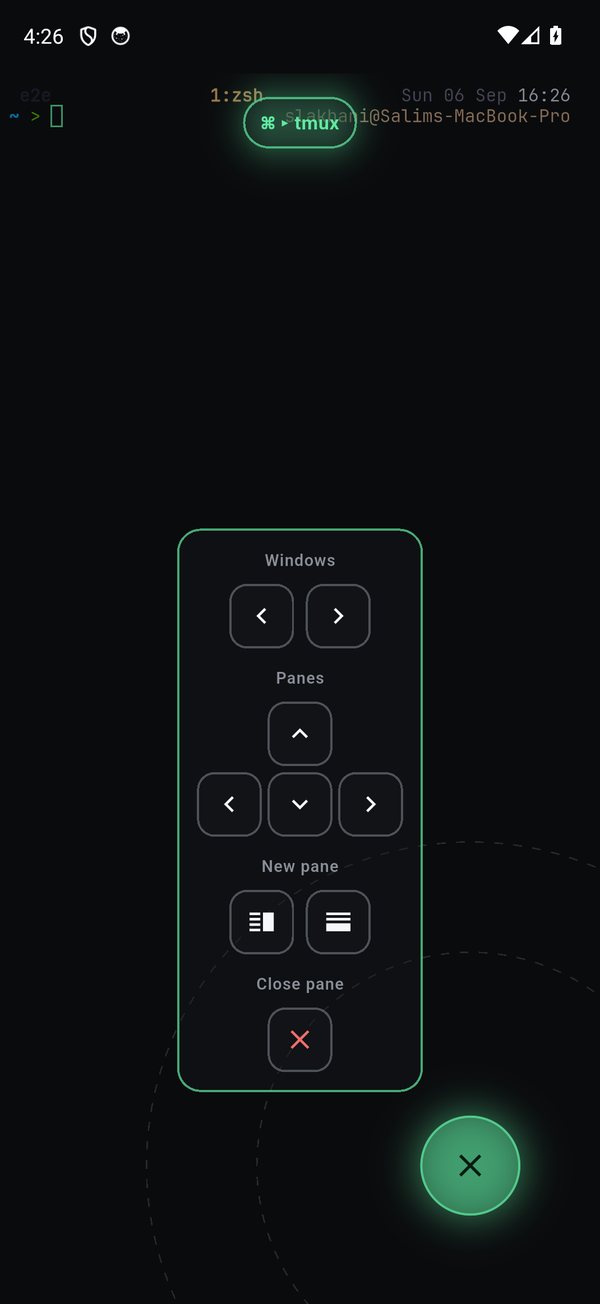
The agent runs on your own machine inside Herdr or tmux. Your phone attaches over SSH and steers it, switch windows, focus panes, dictate, send an image, all from the Command Dial, so most of a check-in never touches the on-screen keyboard.
What is Herdr?
This walkthrough uses Herdr, an agent multiplexer that lives in your terminal. Like tmux, it keeps a session running on your machine so a coding agent survives a disconnect, but it is built around AI coding agents. Install it on your Mac (details at herdr.dev):
curl -fsSL https://herdr.dev/install.sh | shOr with Homebrew: brew install herdr.
Prefer tmux? Every step below is the same. Pick Tmux as the Startup mode and start the session with tmux new -A -s myapp_claude instead of the herdr command.
Walkthrough: Claude Code in Herdr, from your phone
The fastest way to get it is to do it. Start Claude Code in a Herdr session on your Mac, then attach to that exact session from your phone.
On your Mac
Check Herdr is installed
Confirm Herdr is present and on your PATH. You should see its path and
herdr 0.8.0.command -v herdr && herdr --versionStart a named Herdr session
Give it a name you will reuse on the phone. The Herdr workspace opens, ready for a command.
herdr --session myapp_claude
Open your project and launch Claude Code
Change into your project and start Claude Code inside the session. Leave it running and detach; Herdr keeps the session alive on the Mac.
cd conduit-analysis && claude
On your phone
Add the host, Startup set to Herdr
Add your Mac as a host with its address and username, then set Startup to Herdr and enter the same session name you used on the Mac.
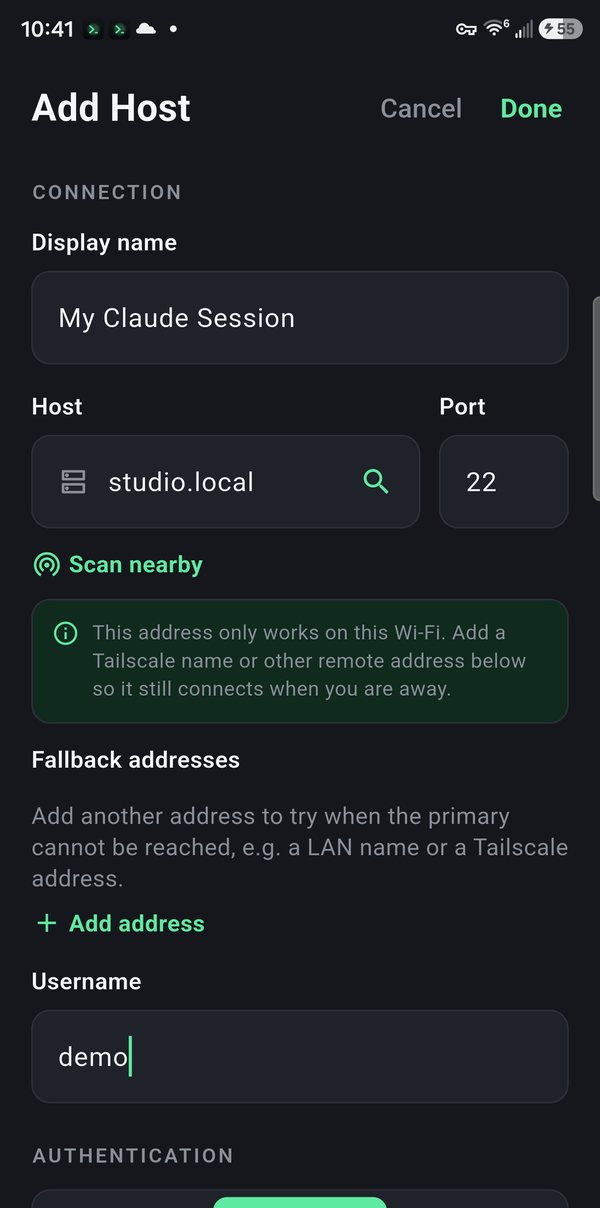
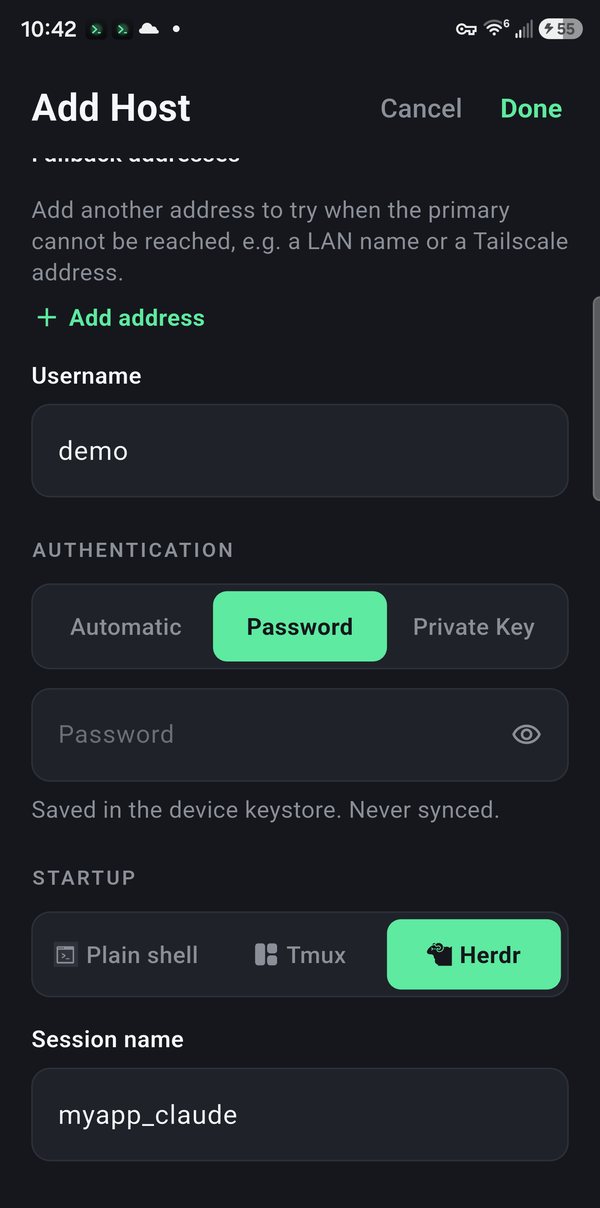
The session name has to match exactly, so TermHub reattaches to the running session instead of starting a new one.
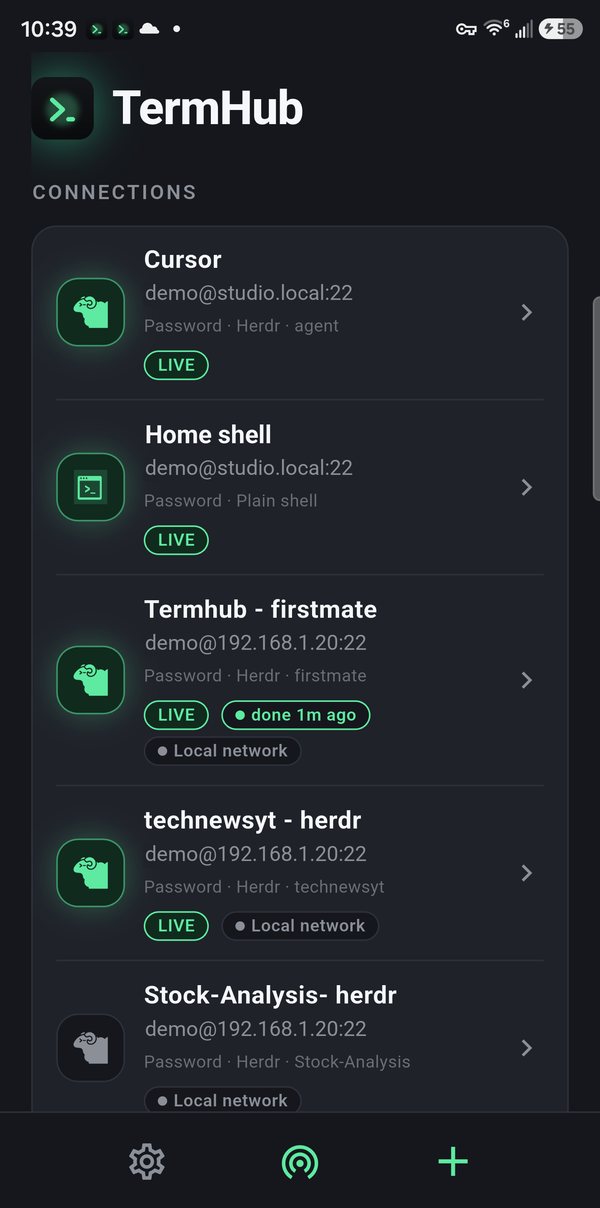
Save it
The host lands in your list, tagged Herdr with its session name.
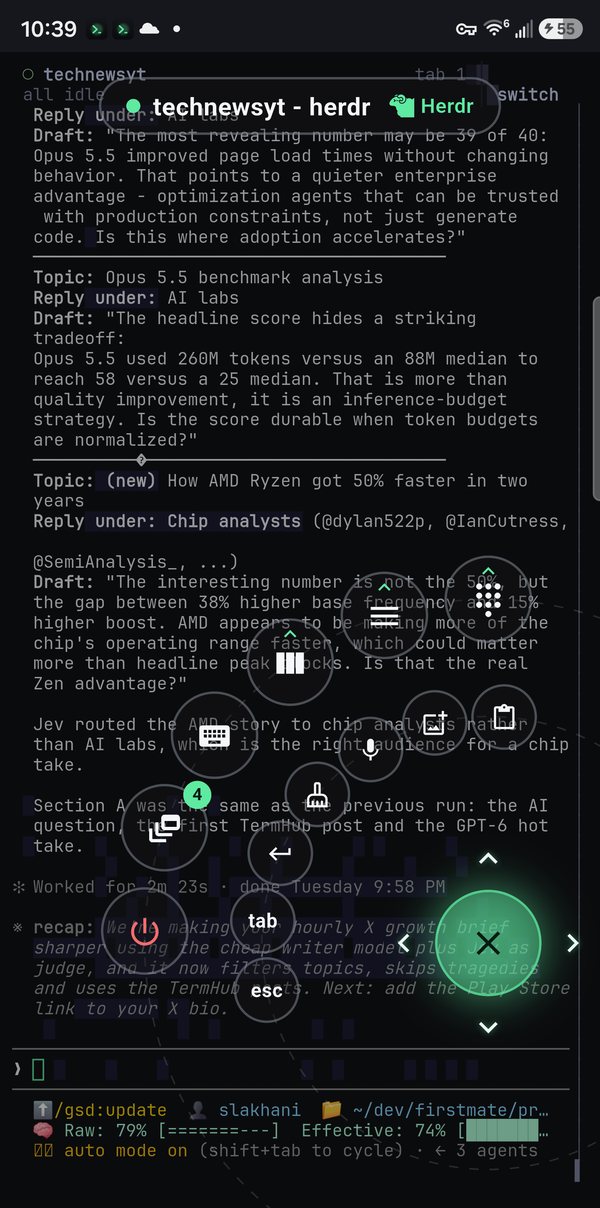
Connect and drive it
Tap the host. You land in the same Herdr session with Claude Code already running. Open the Command Dial to switch windows, send keys, dictate, or send an image, all without the keyboard.
The same setup for any agent
Nothing here is specific to Herdr or Claude Code. Pick Tmux as the Startup mode instead of Herdr, and run Codex, Pi, OpenCode, or any CLI in the pane. It is a real PTY, so anything that runs in a terminal works the same way.
Why it stays alive, and how your phone reaches it
The multiplexer, Herdr or tmux, is the persistence boundary. Because the agent runs inside it and not in a throwaway login shell, the work keeps going when the phone sleeps or the network changes, and you reconnect and reattach. To reach the machine without opening a port, put it on a private mesh; the Tailscale guide covers that.
Why the dial doesn't corrupt your agent
If you typed tmux next-window into the pane while the agent held it, those bytes would become the agent's input, not a tmux command. TermHub avoids that: the dial's multiplexer actions run on a separate SSH channel against the session, so they fire no matter what holds the pane, and it auto-detects your host's tmux config.
Send an image to the agent
When the agent needs a screenshot, the dial's Send Image uploads the photo over the live SFTP connection and drops the remote path onto the input line, so the agent reads a file on your own host with no third-party image host.
What this setup won't do
- No push when the agent finishes while the app is closed.
- SSH transport, a dropped connection is reconnect-and-reattach (lossless with a multiplexer), not Mosh roaming.
Get TermHub
TermHub is live on Google Play. Install it and connect to your first host in a couple of minutes.